Add your working hours
Managing Your Business Availability in Fox Connect
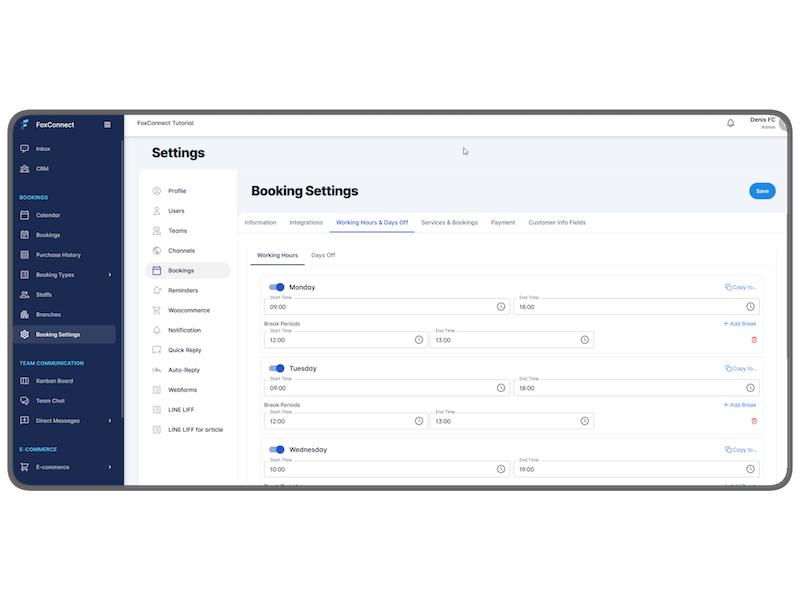
Fox Connect offers a dedicated interface for controlling when customers can book your services. Go to the booking settings and then to the “Working hours & Days off” tab.
Two key sections are available:
| Section | Purpose | Key Features |
|---|---|---|
| Working Hours | Define the recurring time slots that are open for bookings. | • Set a standard schedule (e.g., 9 AM–5 PM, Monday‑Friday). • These times appear automatically in the customer‑facing booking calendar. |
| Days Off | Mark any period during which you will not accept bookings. | • Specify holidays, special closures, or other breaks (e.g., a weekend retreat). • The system blocks all slots within these dates so customers cannot book them. |
How It Works
- General Business Hours
- Enter the start and end times for each day of the week. These defaults are used whenever a customer selects a date that falls within your standard schedule.
-
The booking interface will only display time slots that match these hours, preventing overbooking outside of your operating window.
-
Special Days Off
- Add any date range that should be considered closed. This could be a national holiday, a staff vacation period, or an unplanned shutdown.
- Once added, the system automatically removes all potential slots for those dates from the booking calendar, ensuring no appointments can be scheduled during downtime.
Practical Tips
- Consistency Across Services: If you offer multiple services, you can set a common schedule for all providers or create distinct schedules per service to reflect differing availability.
- Future Planning: Plan holidays and recurring closures well in advance so that customers see accurate availability.
- Verification: After saving changes, preview the booking page to confirm that unavailable times are correctly hidden.
By carefully configuring both sections, you maintain full control over your booking calendar and provide a seamless experience for clients.