Events and Tickets
To effectively manage bookings, it is essential to understand the distinct roles that Events and Tickets play within the FoxConnect ecosystem.
- Events: These represent the "activity" itself. Use this feature to create and schedule specific occurrences, such as a workshop, a class, or a one-time session.
- Tickets: These represent the "access" to an event. Tickets are the mechanism used to sell entry. They can be sold as single-use entries or as packages (multiple usages) that allow a customer to attend several events.
1. Creating an Event
Use this section to define the time, place, and nature of your activity.
Navigation:
Booking Types → Events → New Event
Configuration Steps:
- Basic Information:
- Event Name & Description: Provide a clear title and a detailed overview of what the event entails.
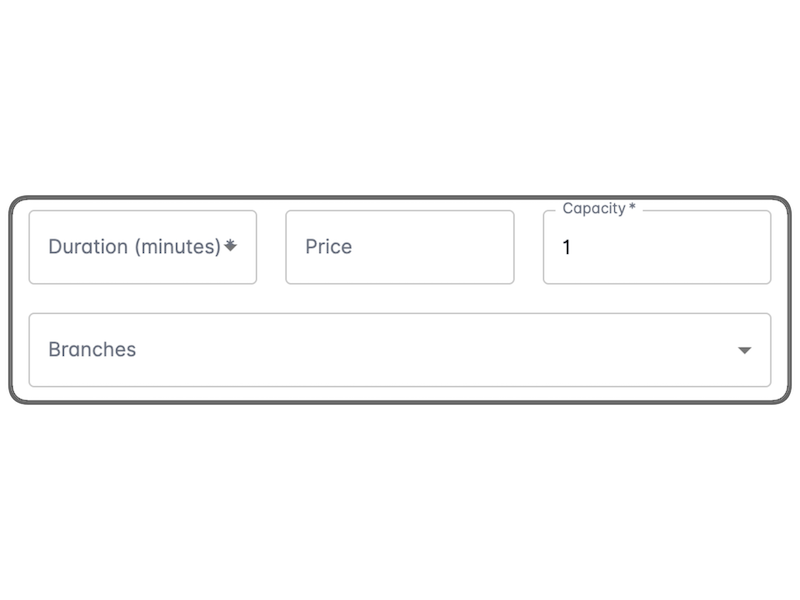
- Duration: Set the expected length of the event.
- Price: Enter the cost per attendee.
- Capacity: Define the maximum number of participants allowed.
 .
.
- Logistics & Branding:
- Branch: Select the specific branch where this event will take place.
- Event Image: Upload a clear, representative image. This image is vital for the customer's booking experience.
- Advanced Settings:
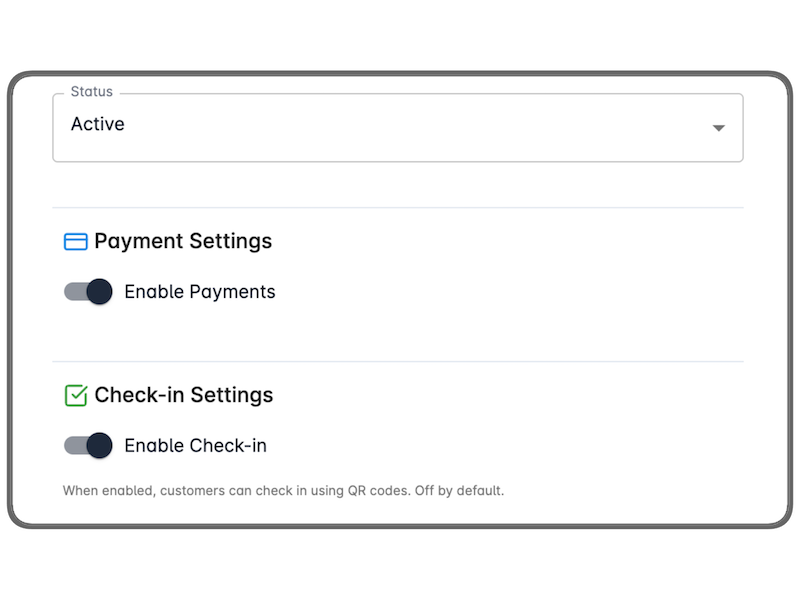
- Status: Ensure the status is set to Active so it is visible to the public.
- Payment Settings (Optional): Enable this to allow customers to pay the full amount online at the time of booking.
Finalization:
Click Create Event. Once created, you can use the View button to manage or monitor your event details.
2. Creating a Ticket
Use this section to manage how customers purchase access to events, including multi-use packages.
Navigation:
Booking Types → Tickets → New Ticket
Configuration Steps:
- Ticket Details:
- Name & Description: Define the ticket type (e.g., "Workshop Pass").
- Price & Usage: Set the price and the Number of Usages.
- Note: This acts as a package. For example, if you set "5 usages," a customer can purchase a single ticket that allows them to attend five different events. Each time they use the ticket, one usage is automatically deducted.
- Identity & Access:
- Image: Upload a relevant image for the ticket.
- Status: Set to Active to ensure availability.
- Advanced Features:
- Payment Settings (Optional): Enable online payments for a seamless checkout experience.
- QR Code Check-in (Optional): Enable this to allow staff to verify attendees using a QR code upon arrival.
 .
.
- Scheduling (The Event Schedule):
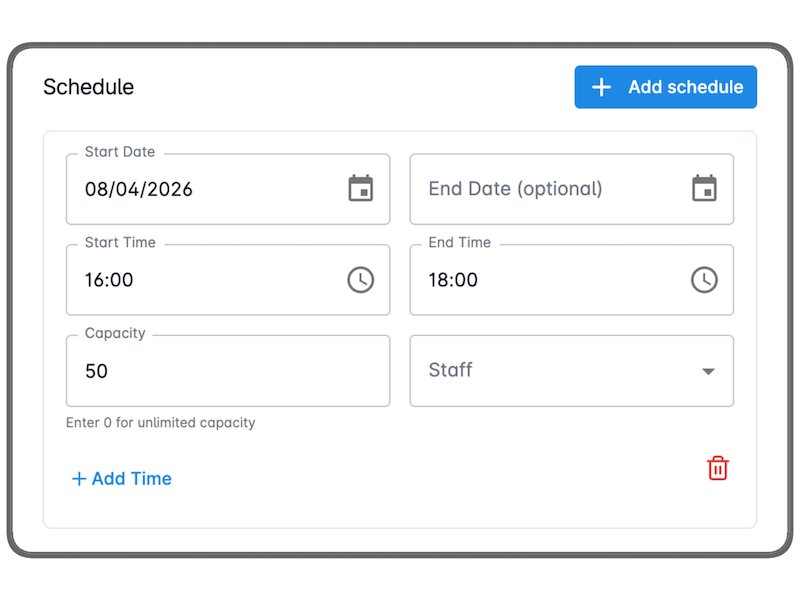
- Dates: Select the start date and, if applicable, an end date.
- Time Slots: Set the specific start and end times for the session.
- Capacity & Staff: Define how many people can attend and optionally assign specific staff members to manage the session.
- Multiple Sessions: If you need to run the same ticket for different times, click Add Schedule to create additional time slots.
 .
.
Finalization:
Click Create. You can manage all active ticket types and their schedules by clicking the View button.
Summary Table: Event vs. Ticket
| Feature | Event | Ticket |
|---|---|---|
| Primary Purpose | Defines the activity and time. | Defines the access and payment. |
| Core Function | Scheduling a class or workshop. | Selling single entries or packages. |
| Key Variable | Duration and Capacity. | Number of Usages (Packages). |
| Key Feature | Branch assignment. | QR Code Check-in. |