Using the Inbox
This guide explains how to navigate and use the Inbox in FoxConnect to manage customer conversations, create bookings, assign products, and customize chat settings.
Navigation Path:
Inbox
1. Overview of the Inbox
The Inbox is the central hub for all customer communications in FoxConnect. It aggregates all conversations from your LINE OA account in one place.
The Inbox interface is organized as follows:
- Conversation Sections: The top area displays active chats, while a separate section shows older conversations.
- Search Bar: Quickly locate a specific client by name or keyword.
- Filters (right side): Narrow down conversations by specific criteria, such as chat type or group.
- Labels: Apply labels to conversations for more precise categorization and filtering.
2. Sending Messages
Select any conversation from the list to open it. You can type and send messages directly using the typing bar at the bottom of the chat window.
3. Creating a Booking from the Inbox
A new appointment can be created directly from a conversation without leaving the Inbox.
- In the bottom bar of the chat, click New Appointment.
- Select the Booking Type.
- Choose the specific service or course from the list.
- Select the Branch, then pick a date and an available time slot.
- Ensure the Status is set to Confirmed.
- Optionally, add a note for internal reference.
- Click Create Booking to finalize.
4. Using Quick Replies
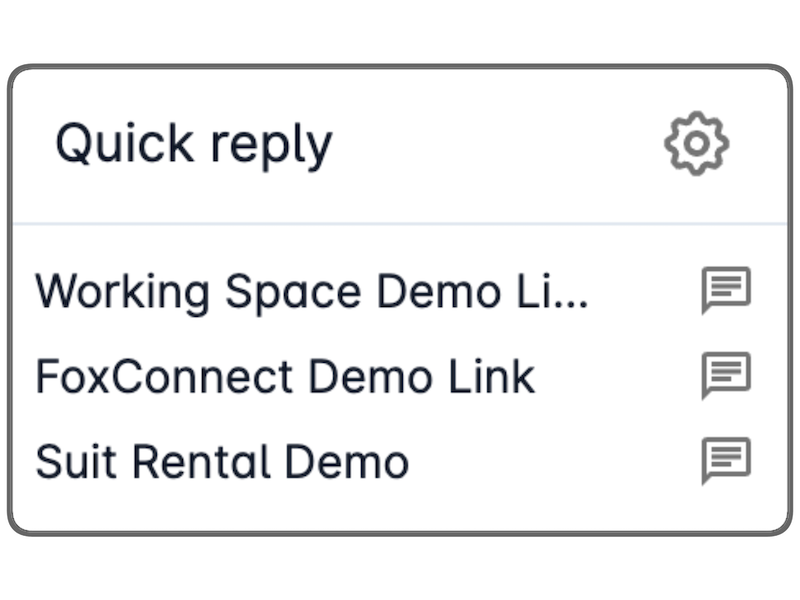
Quick Replies allow you to send predefined messages to customers with a single click, saving time for frequently used responses.
To set up Quick Replies:
- Go to Settings.
- Click New to create a new Quick Reply.
- Enter a Title for the reply.
- Optionally, select a channel to restrict the reply to a specific platform.
- Write the message content.
- Optionally, include an image.
- Click Duplicate to save and make it available.
To use a Quick Reply in the Inbox:
Click the Quick Reply button in the bottom bar of any conversation and select the relevant predefined message.
5. Uploading Files
You can share files with a customer directly from your desktop:
- Click the upload icon in the bottom bar of the chat.
- Select the file from your computer to attach and send it.
6. Adding Notes & Reminders
Keep track of important client information by adding internal notes.
- Click Notes in the top-right corner of the conversation.
- Add notes about the client, their preferences, or their purchases.
- Notes are visible only to your team and are not sent to the customer.
7. Viewing Customer Details
Access full customer information directly from a conversation:
- Click the three dots (⋯) menu in the top-right area of the chat.
- Select View Contact Details to see the customer's profile information.
8. Assigning Products to a Customer
You can assign courses, bundles, or service packages to a customer from within the Inbox.
To assign a Course:
- Click the three dots (⋯) menu in the top-right area of the chat.
- Click Assign Product.
- Navigate to the Course section.
- Select the desired course.
- Set the Status to Confirmed.
- Choose the Source and optionally add a note.
- Click Assign.
To assign a Bundle or Service Package:
Follow the same steps above, but select the Bundle or Service Package section instead of Course.
9. Managing the Customer Profile
From the customer panel, you can perform several management actions:
- Click the three dots (⋯) menu in the top-right area of the chat.
- Assign a Contact Owner: Attribute the customer to a specific team member.
- Add a Label: Tag the customer for easier filtering and segmentation.
- Edit Contact: Click Edit Contact to update the customer's profile details.
- View Appointments: Scroll down to see a full history of the customer's bookings.
- View Loyalty Tier: Check the customer's current loyalty status at the bottom of the profile panel.
Summary Checklist
- Inbox sections reviewed (Active, Older, Search, Filters, Labels).
- Messages sent via the typing bar.
- Booking created using New Appointment.
- Quick Replies configured in Settings and used in chat.
- Files uploaded via the upload icon.
- Notes added using the Notes button.
- Customer details accessed via the three dots menu.
- Products (Course / Bundle / Package) assigned to the customer.
- Contact Owner assigned and Label applied.
- Customer profile reviewed (appointments & loyalty tier).