Adding New Services
This guide provides step-by-step instructions on how to create and configure new services within the FoxConnect platform.
Navigation Path:
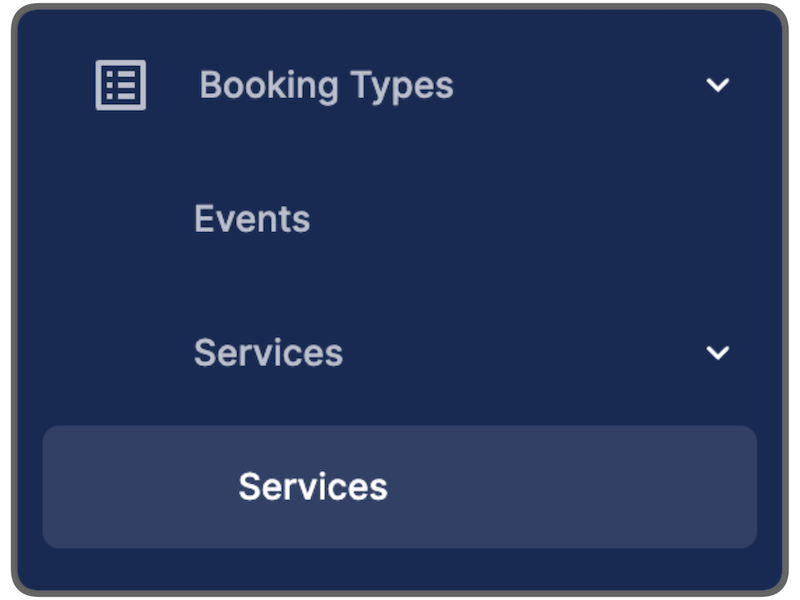
Booking Types → Services → Services
 .
.
1. Initiate Service Creation
Once you have navigated to the Services section, click the New Service button located in the top-right corner of the interface to open the configuration form.
2. Configure Service Details
Complete the following sections to define the core properties of your service:
-
Identity & Description:
- Service Name: Enter the official name of the service.
- Description: Provide a brief overview of what the service entails.
-
Logistics & Pricing:
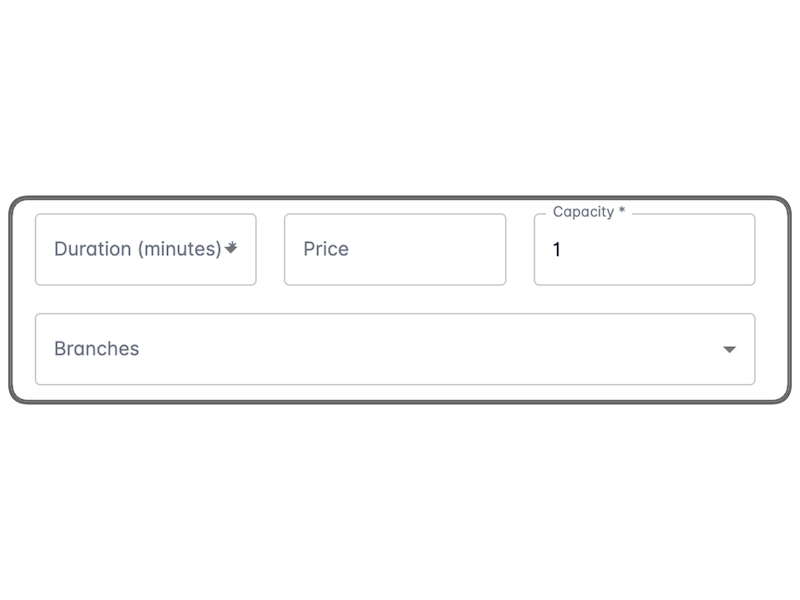
- Duration: Set the expected length of time for the service.
- Price: Enter the cost of the service.
- Staff Capacity: Define the number of staff members or capacity limits associated with this service.
 .
.
- Location & Visuals:
- Branch Selection: Use the dropdown menu to choose which branch (or branches) will offer this service.
- Service Image: Upload or provide a URL for a service image.
- Tip: Choose a clear, high-quality image that is representative of the service, as this is what customers will see on the booking interface.
3. Advanced Settings
Before finalizing, ensure the following configurations are set:
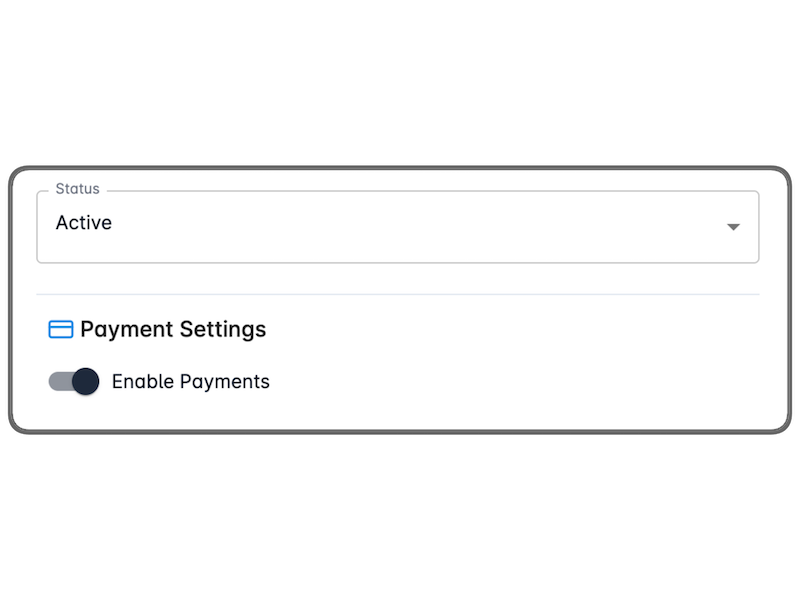
- Service Status: Ensure the status is set to Active. If the status is not active, the service will not be visible to customers.
- Payment Settings (Optional): You may enable payment settings to allow customers to pay the full amount online at the time of booking. This helps reduce no-shows and simplifies the checkout process.
 .
.
4. Finalizing the Service
- Create: Once all fields are populated, click the Create Service button.
- Management: Your new service is now live. You can view, edit, or manage the details of your service at any time by clicking the View button in the service list.
Summary Checklist
- Service Name and Description entered.
- Duration, Price, and Capacity defined.
- Correct Branch assigned.
- Service Image uploaded.
- Status set to Active.
- (Optional) Online Payment enabled.