Setup your business info
Setting Up Your Business Profile in FoxConnect
To ensure your booking page displays accurate contact information and branding, follow these steps to populate the “Booking Settings – Information” tab:
- Log In & Select Organization
-
Sign into your Fox Connect account and choose the organization you manage. This context is essential because each organization can have distinct booking settings.
-
Navigate to Booking Settings
- Go to the Booking Settings section and open the Information tab. This area is specifically designed for entering core business details that will appear on the booking interface.
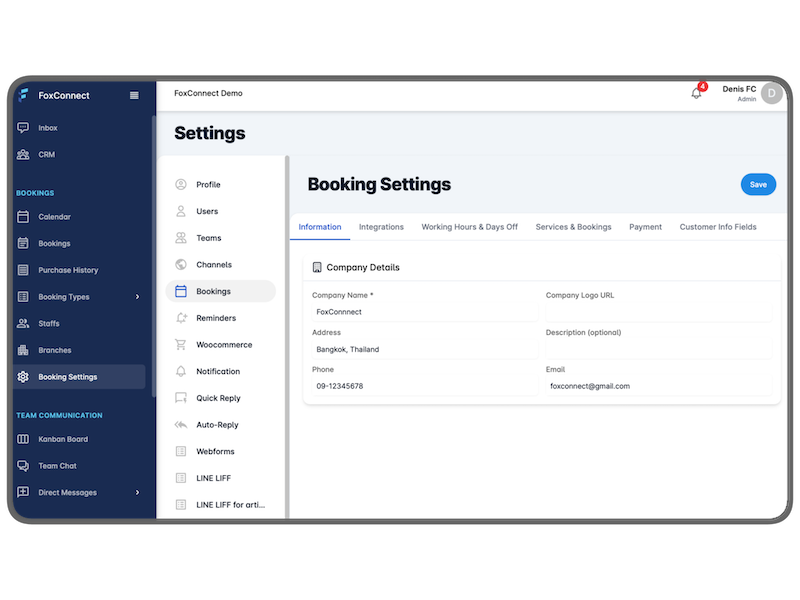
- Enter Core Business Details
- Business Name – The official name that will be shown to customers.
- Address – Full mailing or service address; useful for contact and location verification.
- Phone Number – A primary line customers can use to reach you.
- Email Address – The email where booking confirmations and inquiries are sent.
-
These fields collectively provide the foundational contact information that appears on all booking pages and confirmation emails.
-
Add a Logo
-
Paste the URL of your business logo into the image link field. The logo will be displayed on booking widgets and confirmation messages, reinforcing brand recognition.
-
Save Your Changes
- After filling in all required fields, click Save to apply the updates. The new information will immediately reflect on your public booking page and any embedded widgets.
By completing these steps, you ensure that every customer interaction starts with clear, professional business details and a consistent visual identity.